

Clock and Countdown are Smart Snacks. You’ll find them alongside Weather in the Smart group.
Add a copy to a Spread, Pack, or schedule. Each copy has its own settings button, so you can make it just the way you like.
Clock
Sometimes it’s nice to know the time without looking at your phone.
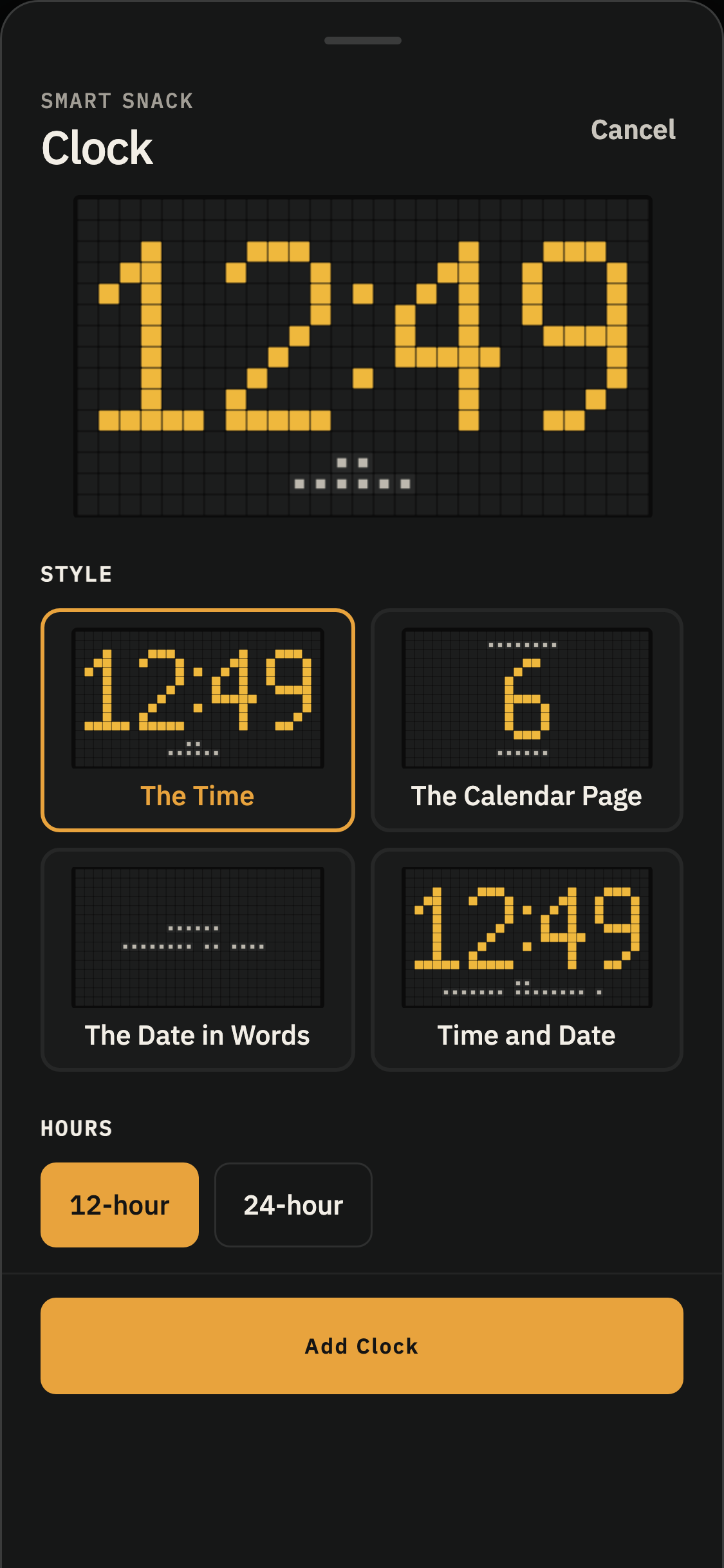
Choose The Time, The Calendar Page, The Date in Words, or Time and Date. Small board previews show what each style looks like before you choose.
For The Time and Time and Date, you can use a 12-hour or 24-hour clock.
Clock shows the Display’s local time or date. Time updates every minute, even when the Spread is paused. Dates change when a new day begins.
Countdown
A birthday, a holiday, or a day you’ve been looking forward to. Some things are worth counting down to.
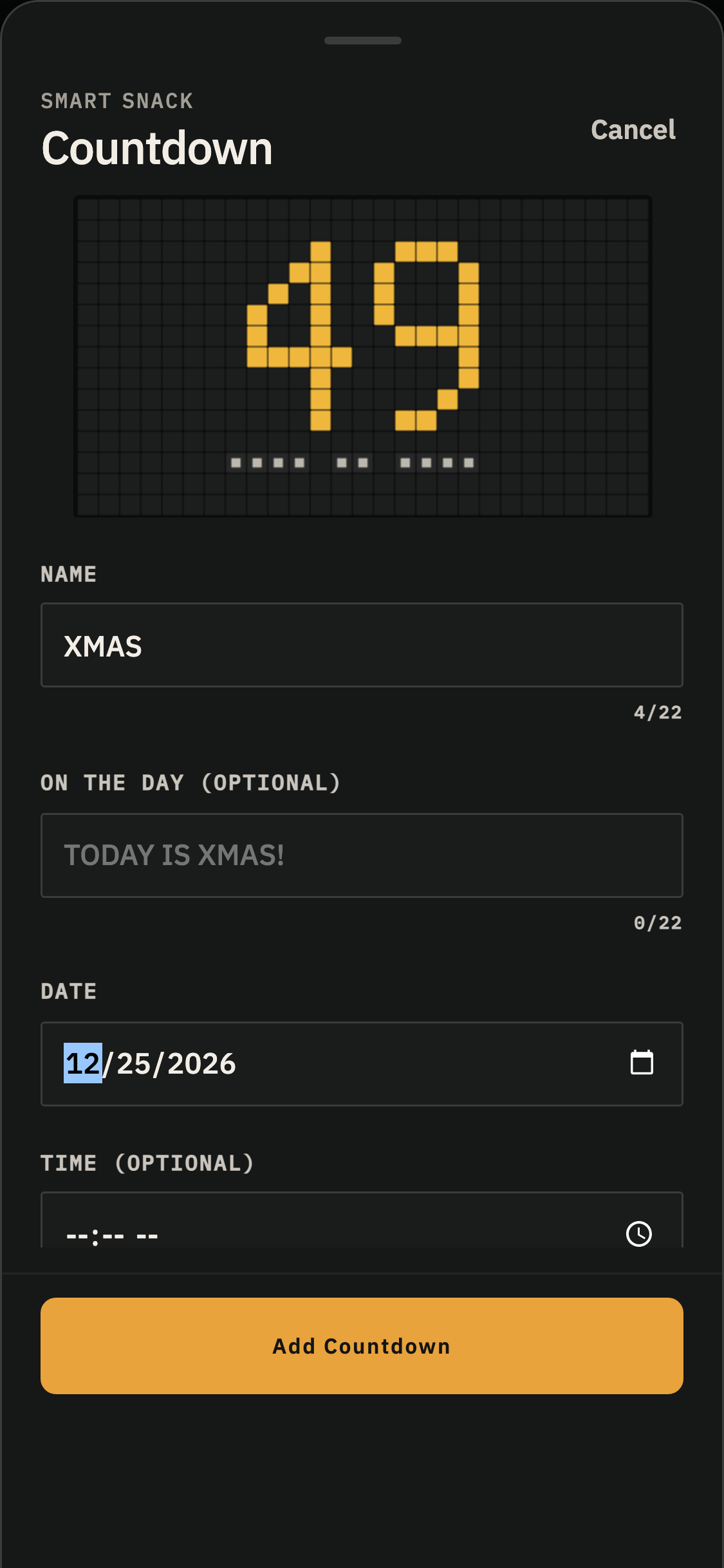
Give your Countdown a name of up to 22 characters and choose a date. You can set a time, too. Leave it blank and the countdown ends at midnight, just as that day begins.
Turn on Repeats every year for occasions that come around again.
If you haven’t given a Countdown both a name and a date, it sits out its turns until you finish setting it up.
Count live starts lets you decide when the final countdown begins. Choose Off, 10 minutes, 30 minutes, 1 hour, 3 hours, 12 hours, or 24 hours before the moment arrives.
While counting live, the Countdown updates every minute. In the final minute, it counts down in 15-second steps: 60, 45, 30, then 15 seconds to go.
When the moment arrives, the Countdown shows its finale for that copy's Hold time.
On the day
On the day lets you choose what the board says when the moment finally arrives.
It might be HAPPY NEW YEAR! or HAPPY BIRTHDAY SAM!
Leave it blank, and the board uses TODAY IS or IT’S, followed by your Countdown’s name.
Taking over the board
Take over the board while counting live is switched on for every new Countdown.
When that Countdown is part of the Spread playing on a Display, even inside a Pack, it takes over the board as soon as its live count begins.
It stays through the countdown and its finale, then returns the board to the Spread right where it left off.
While the Countdown has the board, scheduled takeovers wait their turn. Play now and Play next can still interrupt briefly, and the Countdown returns afterward.
Want to return to the regular Spread early? Tap Back to the Spread to end the Countdown's takeover.
If you'd rather the Countdown appear only during its usual turns, switch Take over the board while counting live off. It will still count live, but only when its turn comes around.
When a one-time Countdown has passed, its row shows Finished, and it stops taking turns on the Display. Open its settings to choose a new date or turn on Repeats every year.
Colors and Hold
You can give Clock and Countdown a look of their own.
Under Background, choose a blank board or one of the flap colors. Then choose a color for Numerals. The colors follow each Display’s Palette, so they may look a little different from room to room.
If two colors are hard to read together, the drawer suggests two clearer choices.
Use Hold to decide how long this copy stays on the board, from 5 seconds to 10 minutes.
Each copy keeps its own Hold time. Changing the Spread’s Hold won’t change it.